
Review the private content a contact has access to
To check what private content a contact can access, review the details on their contact record.
- In your HubSpot account, navigate to Contacts > Contacts.
- Click the name of a contact.
- In the List membership and access to private content section on the right, click Manage list memberships.
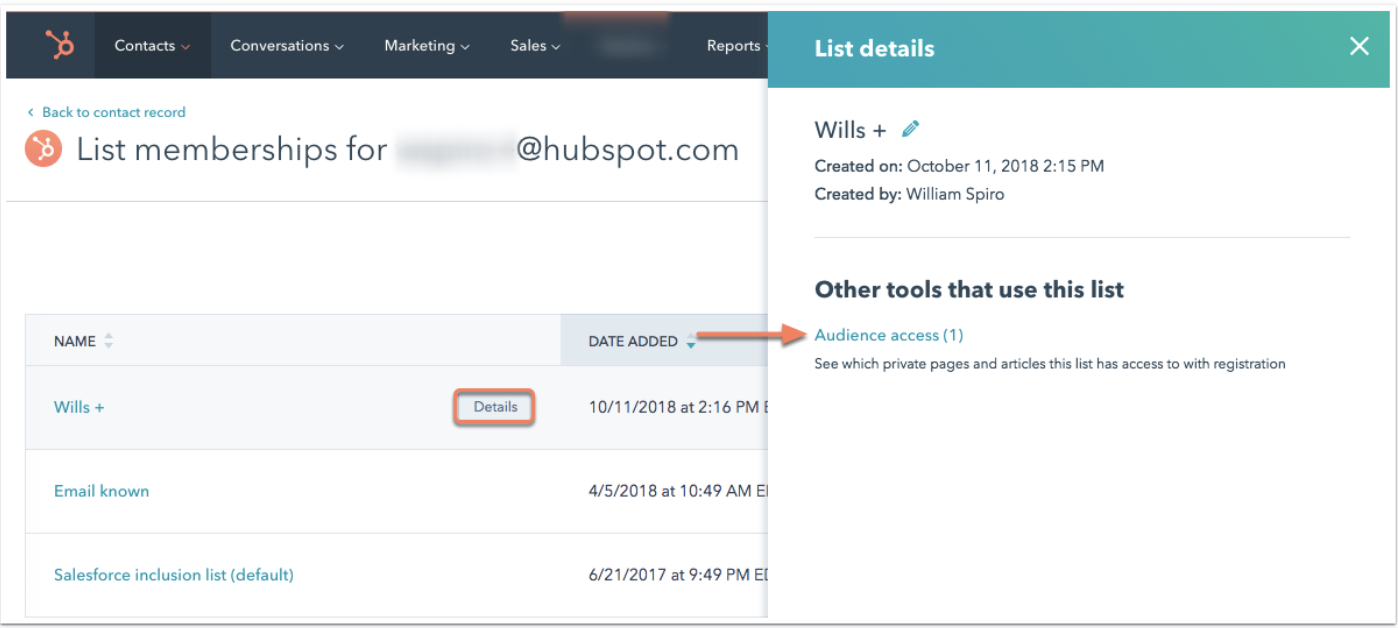
- Hover over a list and click Details.
- In the right panel, click Audience access to see the names of the private page(s) that contacts on the list can access.
Resend the registration email to a specific contact
A contact will be locked out of their account after ten unsuccessful attempts to log in. You can email contacts a link to reset their own password from the contact record.
If a contact didn't receive your registration email, advise them to add noreply@domain.com ("domain" being the subdomain your private page is hosted on) to their address book, or to add your sending IP addresses to their allowlist.
Please note: password reset links are valid for one use within 24 hours. The link will expire once a contact uses it, or if 24 hours have passed since the email was sent.
To send a registration email email from the contact record:
- In your HubSpot account, navigate to Contacts > Contacts.
- Click the name of the contact.
- In the List membership and access to private content section on the right, click Manage List memberships.
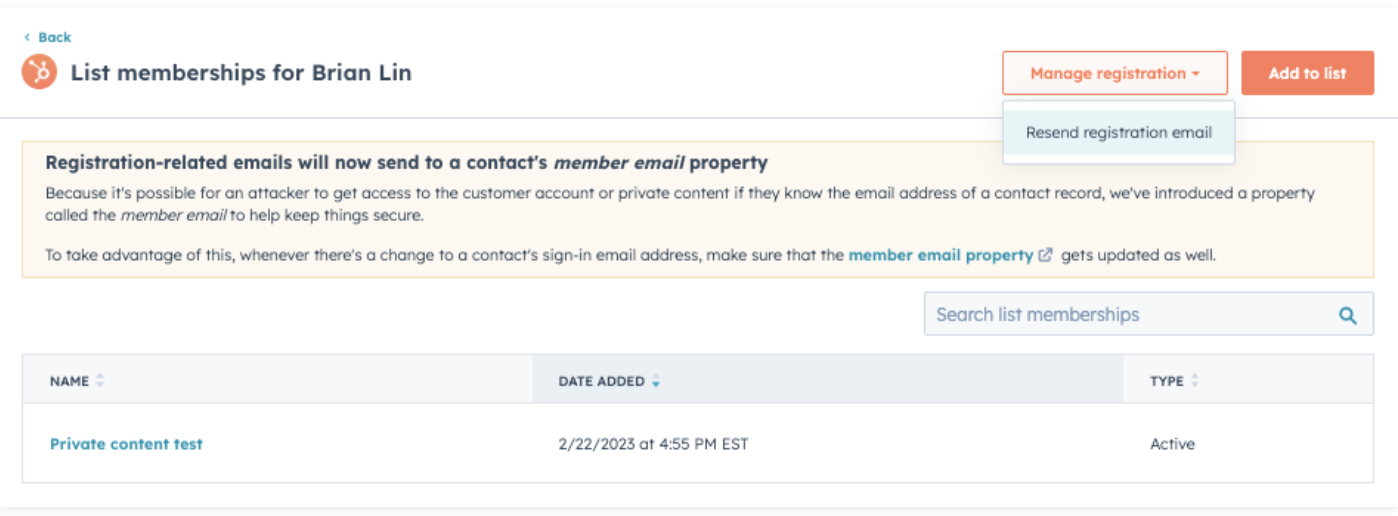
- In the upper right, click the Manage registration dropdown menu, then select Resend registration email.
Please note: a contact's registration is connected to the contact's primary email regardless of whether or not it's the email they originally registered. Once a registered contact's primary email is changed within HubSpot, they can automatically log in with that email and their previously set password. After an email is updated, you do not need to resend a registration email, and Reset password/Forgot your password? emails will be sent to the new primary email moving forward.
Change a contact's member email
If a contact wishes to change the email they use to receive membership emails, users with the permissions to edit that contact can change this information in the Member email property.
The email address in the Member email property will receive the following membership emails:
- Registration invitation email
- Password confirmation email
- Password reset email
For security reasons, it's recommended to require emails from both the contact's current Member email, as well as the email address they want to receive membership emails at moving forward.
Contact properties about private content registration
There are a few contact properties that will update automatically for contacts that are invited to register to view private content. The Membership notes property can be updated manually or with a workflow.
- Domain to which registration email was sent: the domain to which the registration invitation email for content membership was sent.
- Membership notes: notes relating to the contact's content membership.
- Registered at: the date and time when the contact set up their content membership.
- Time registration email was sent: the date and time when the registration email was sent to the contact.
Send registered contacts a direct link to your registration page
To send your contacts a direct link to the log in page for private content, add /_hcms/mem/login to the end of your page domain.
For example, for content hosted on inbound-marketing.com, the log in page URL would be: http://inbound-marketing.com/_hcms/mem/login
Please note: this link will only work for customers who have already registered with a username and password.
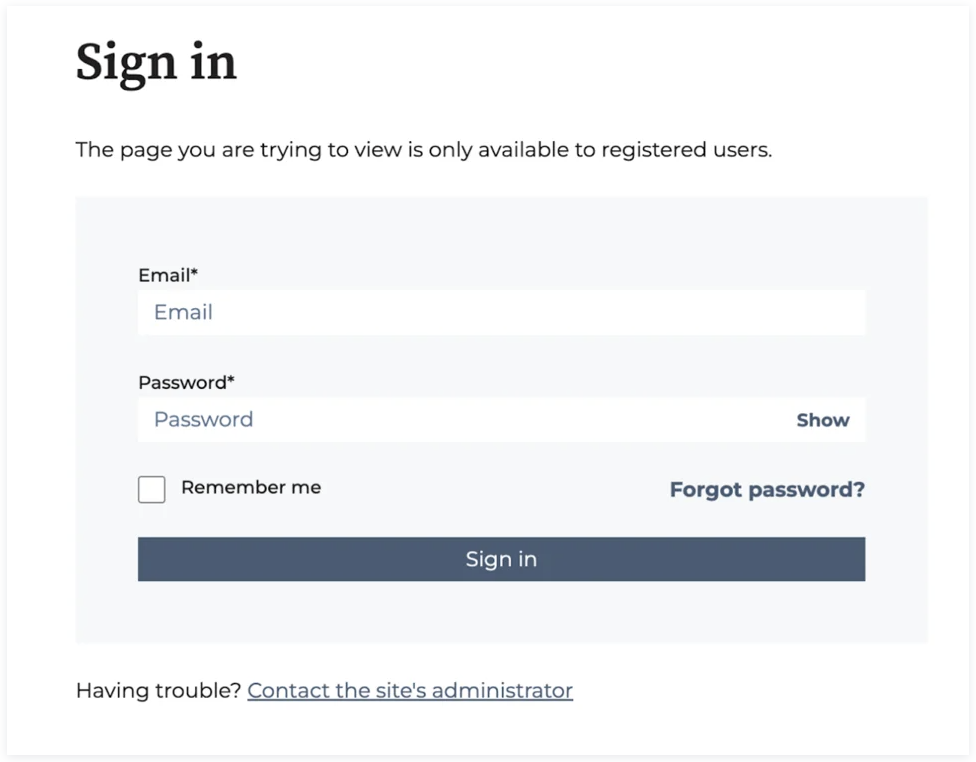
To direct your contacts to a log out page, add /_hcms/mem/logout to the end of your page domain.
For example, for content hosted on inbound-marketing.com, the log out page URL would be: http://inbound-marketing.com/_hcms/mem/logout